Auto X Commands: Every Telegram Command and What It Does (2026)
What commands does the Auto X Telegram bot have?
Auto X has 14 commands: /start, /help, /connect, /disconnect, /status, /schedule, /cancel_schedule, /queue, /cancel, /loop, /cancel_loop, /ai and /cancel_ai, including /subscribe for billing. Auto X is a Telegram bot that schedules and auto-publishes your text and media posts to X. This cheat sheet lists each command, what it does, which plan it needs and the one thing that trips people up, checked against the bot's own /help text on 2026-11-09.

Telegram bots receive commands as messages that start with a slash, as described in Telegram's bot features documentation. You can type a command, or tap it in the bot's menu or in a /help reply. Nothing below changes how Auto X is priced; for plans and renewals see Auto X pricing explained.
Which command do you need for which job?
Use /connect once, /schedule for each post, /queue to see what is waiting and /cancel to remove one post by its short ID. Everything else is optional: loops are for recurring posts and /ai is for generating drafts. Polls are not supported yet; our guide to scheduling a poll on X covers the workaround.
| Command | What it does | Plan |
|---|---|---|
| /start | Welcome message showing your tier and whether an X account is connected | All |
| /help | Lists every command, plus the website, privacy and terms links | All |
| /connect | Sends a button that opens X's authorization page; the link expires in 10 minutes | All |
| /disconnect | Unlinks your X account and asks X to revoke the token | All |
| /status | Shows tier and subscription info | All |
| /schedule | Starts the flow to schedule a post: send the content, then pick the time | Free and up |
| /cancel_schedule | Aborts a scheduling flow you started | Free and up |
| /queue | Lists upcoming posts, each with a cancel button | Free and up |
| /cancel <id> | Cancels one scheduled post by its ID | Free and up |
| /loop | Creates and manages recurring post loops | Pro and up |
| /ai text, image, video | Generates a post with AI before you schedule it | Ultra |
| /cancel_ai | Aborts an AI generation flow | Ultra |
| /subscribe | Opens monthly plans or Pay as you go | All |
A new user needs three of these in order: /start to open the bot, /connect to link X, then /schedule. The step-by-step guide to scheduling X posts from Telegram walks through the same three commands with the screens.
How do /connect and /disconnect work?
/connect sends a button that opens X's authorization page, and the link expires after 10 minutes, so run it again if you wait too long. If your X account is already connected, the bot tells you to run /disconnect and then /connect again to refresh permissions, which it says is needed for media posts.
/disconnect removes the saved X account from Auto X and, as a best effort, asks X to revoke the access token first. If the revoke request fails, the disconnect still goes ahead, so check your connected apps on X if you want to be sure the grant is gone. The permissions Auto X asks for, and how to remove them from X itself, are covered in whether Auto X is safe and how to disconnect.
How do /queue, /cancel and /cancel_schedule work?
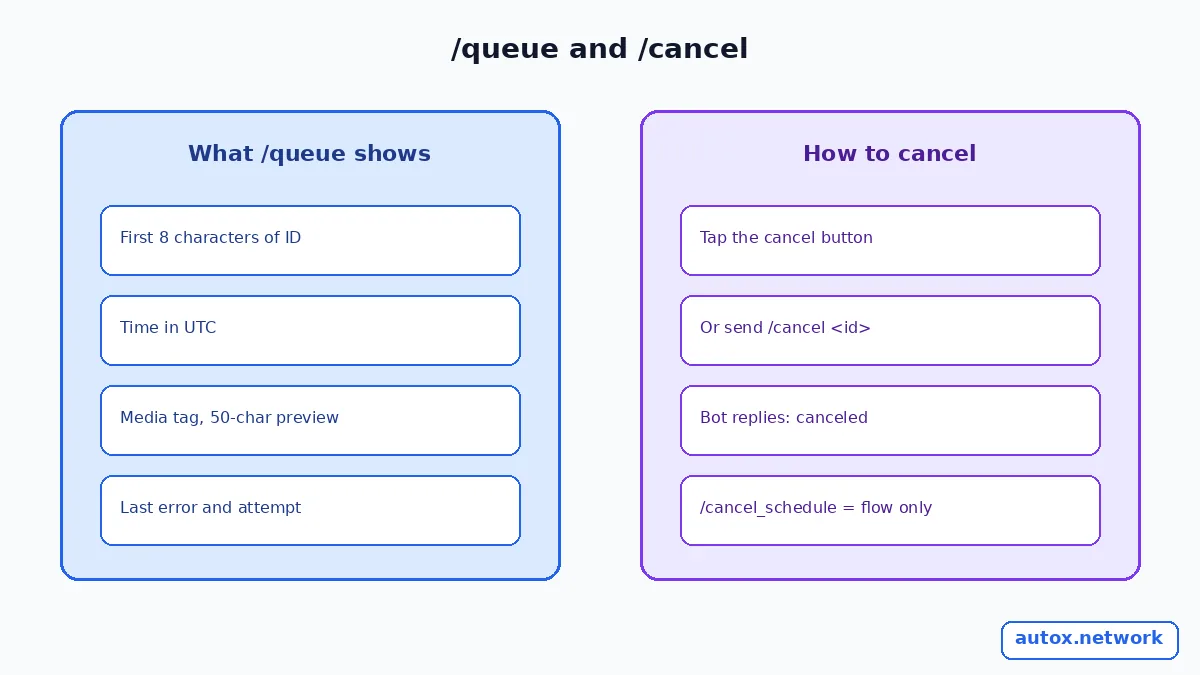
/queue lists your upcoming posts, and each entry shows the first 8 characters of its ID, the scheduled time in UTC, a media tag if there is one and the first 50 characters of the text. Tap the cancel button under a post, or type /cancel followed by that 8-character ID, and the bot replies that the post was canceled.
- You must be connected. /queue answers "Connect your X account first with /connect" until X is linked.
- Times are UTC. The queue prints times in UTC, so convert before you decide a post is late. The timezone and quiet hours guide explains how to plan around that.
- Failed attempts show up. If a post has an error, /queue prints the last error and the attempt number under it. The eight causes of a scheduled post not going out maps those messages to fixes.
- /cancel_schedule is different. It only aborts the scheduling flow you are in the middle of. It does not delete a post that is already in the queue; use /cancel for that.
Which commands need a paid plan?
Scheduling, the queue and cancelling work on the Free plan, loops need Pro, and AI generation needs an Ultra plan. Prices on the Auto X homepage on 2026-11-09: Free is €0 with a 7-day scheduling horizon and 10 media posts a month; Pro is €0.99 per month; Ultra Text is €5.99, Ultra Image €7.99 and Ultra Video €15.99 per month; plans renew monthly in euros through Stripe with no free trial.
| Plan | Commands it unlocks | Price (checked 2026-11-09) |
|---|---|---|
| Free | /schedule, /queue, /cancel | €0 |
| Pro | Adds /loop and its subcommands | €0.99 / month |
| Ultra Text | Adds /ai text | €5.99 / month |
| Ultra Image | Adds /ai image | €7.99 / month |
| Ultra Video | Adds /ai video | €15.99 / month |
| Pay as you go | Billed from usage at month end | €0.001 per post, €0.006 per AI text, €0.025 per AI image, €0.055 per second of AI video |
Cancelling a paid plan is done in the Stripe customer portal, which Stripe's customer management documentation describes as the place customers manage subscriptions and payment details. Run /status first to see your renewal date.
What do the /loop subcommands do?
/loop has six subcommands: create, list, edit, delete, pause and resume, and the last four take a loop ID. A loop posts a rotating set of posts on a daily, weekly or custom interval, and it needs a Pro plan or higher.
- /loop create starts a rotating post loop; /loop list shows your loops so you can manage them.
- /loop edit <id> changes the name, interval or posts; /loop delete <id> removes the loop.
- /loop pause <id> and /loop resume <id> toggle a loop without deleting it.
- /cancel_loop aborts a loop flow you are part-way through.
Loops suit evergreen posts you are happy to repeat; read the rules for recurring evergreen posts on X before you put one on a timer.
What do the /ai commands do?
/ai text, /ai image and /ai video generate a post before you schedule it, and each needs the matching Ultra level. After each generated post the bot lets you create more until you reach your limit, or finish with Done, and /cancel_ai aborts the flow at any point.
The cheat sheet only names the commands here. For the "from top posts" text flow, see how /ai text drafts an X post from your top posts.

If you are new to Auto X, the Auto X homepage shows the four setup steps and the plans, and the bot itself is @auto_x_schedule_bot on Telegram. If you share a link that opens the bot with a payload, see how to test a Telegram /start payload.

FAQ
How do I see every Auto X command?
Send /help to the bot. It replies with every command grouped by Account, Scheduling, Loops, AI Generation and Billing, and adds links to the Auto X website, privacy policy and terms.
How do I cancel a scheduled post in Auto X?
Send /queue, then tap the cancel button under the post, or send /cancel followed by the first 8 characters of the post ID shown in the queue. The bot replies that the post was canceled.
Why does /queue say to connect my X account?
The queue only works once an X account is linked. Run /connect, tap the button within 10 minutes and authorize the app on X, then run /queue again.
Does /cancel_schedule delete a post in my queue?
No. It only aborts a scheduling flow you started but did not finish. To remove a post that is already in the queue, use the cancel button in /queue or /cancel with the post ID.
Sources
- Telegram: Bot features, commands (checked 2026-11-09)
- Stripe documentation: Customer management (checked 2026-11-09)
- Auto X bot /help text and command handlers, and autox.network plans (checked 2026-11-09)