Telegram Bot Webhook Not Working? Read getWebhookInfo and Fix the Error (2026)
Why is my Telegram bot webhook not working?
Usually because Telegram can't deliver to your URL, and it tells you why if you ask. The Bot API method getWebhookInfo returns the webhook URL Telegram has on file, how many updates are waiting (pending_update_count), and the time and text of the most recent delivery error (last_error_date and last_error_message). Those three fields answer most "my bot stopped responding" questions in under a minute. This guide shows how to read them, what the common error messages point to, and the order we use to fix a webhook without losing updates. It's the same routine we use for the Auto X Telegram bot, which schedules X posts from Telegram and depends on every update arriving once.
If your bot uses getUpdates polling instead of a webhook and you see a 409 error, that's a different problem; see how to fix a Telegram bot 409 Conflict.
Step 1: call getWebhookInfo
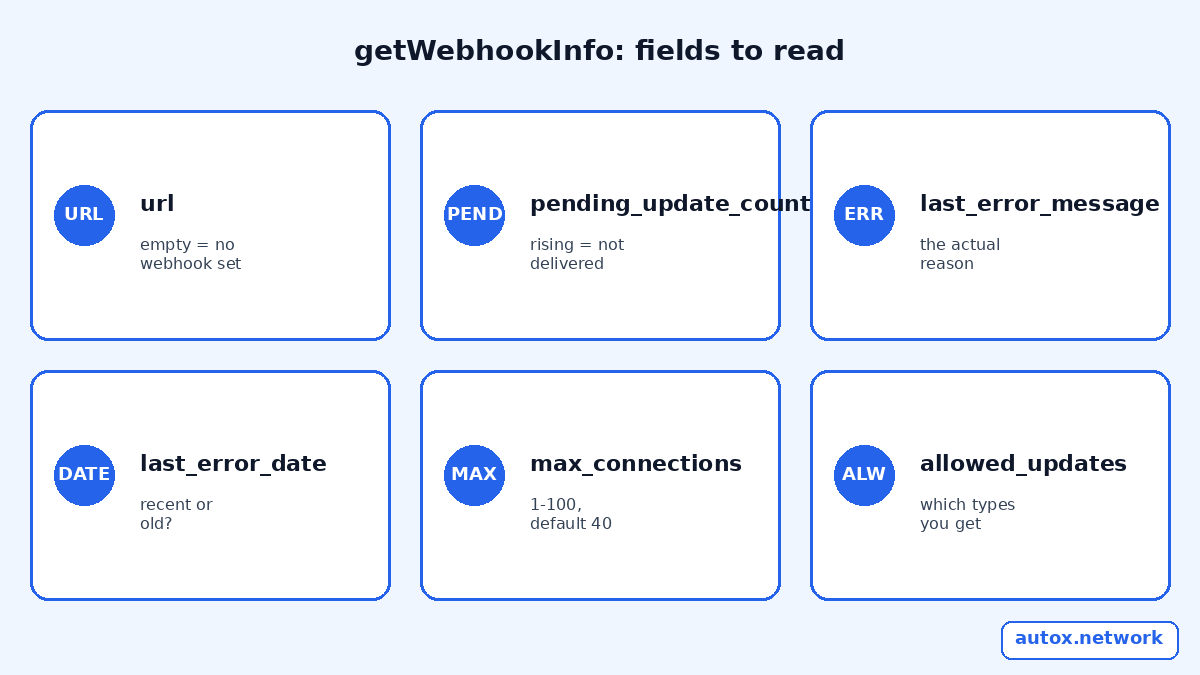
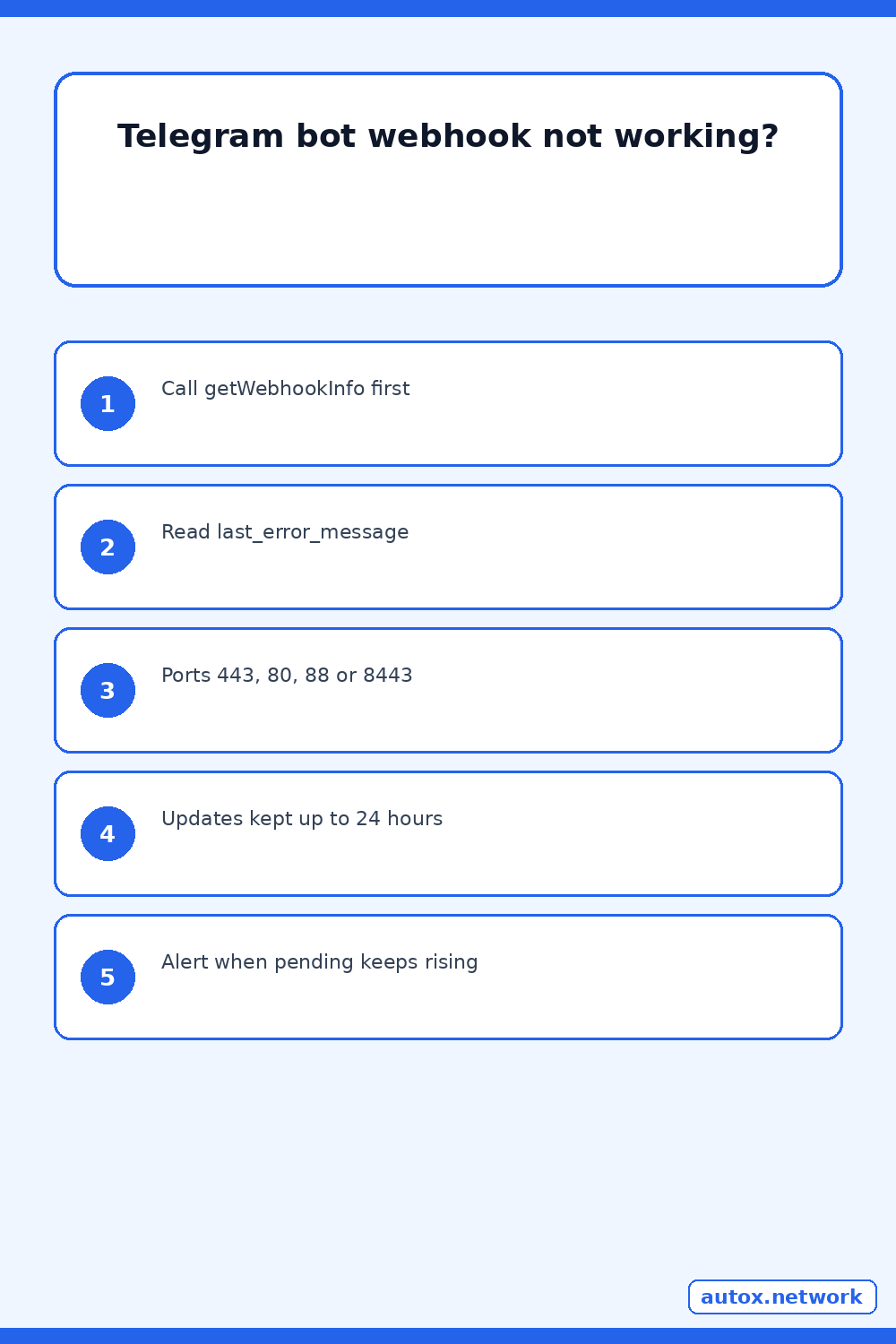
Open https://api.telegram.org/bot<token>/getWebhookInfo from a trusted machine, or call it from your code, and keep the token out of logs and screenshots. The response is a WebhookInfo object. The fields that matter most:
- url: the webhook Telegram will post to. If it's empty, no webhook is set, and updates are only available through
getUpdates. - pending_update_count: updates waiting for delivery. A number that keeps growing means Telegram is trying and failing.
- last_error_date and last_error_message: the Unix time and human-readable text of the most recent delivery error.
- last_synchronization_error_date: an error syncing updates between Telegram's own datacenters, which isn't something your server caused.
- max_connections and allowed_updates: how many simultaneous HTTPS connections Telegram may open (1 to 100, default 40) and which update types you asked for.
Step 2: match the error to a cause
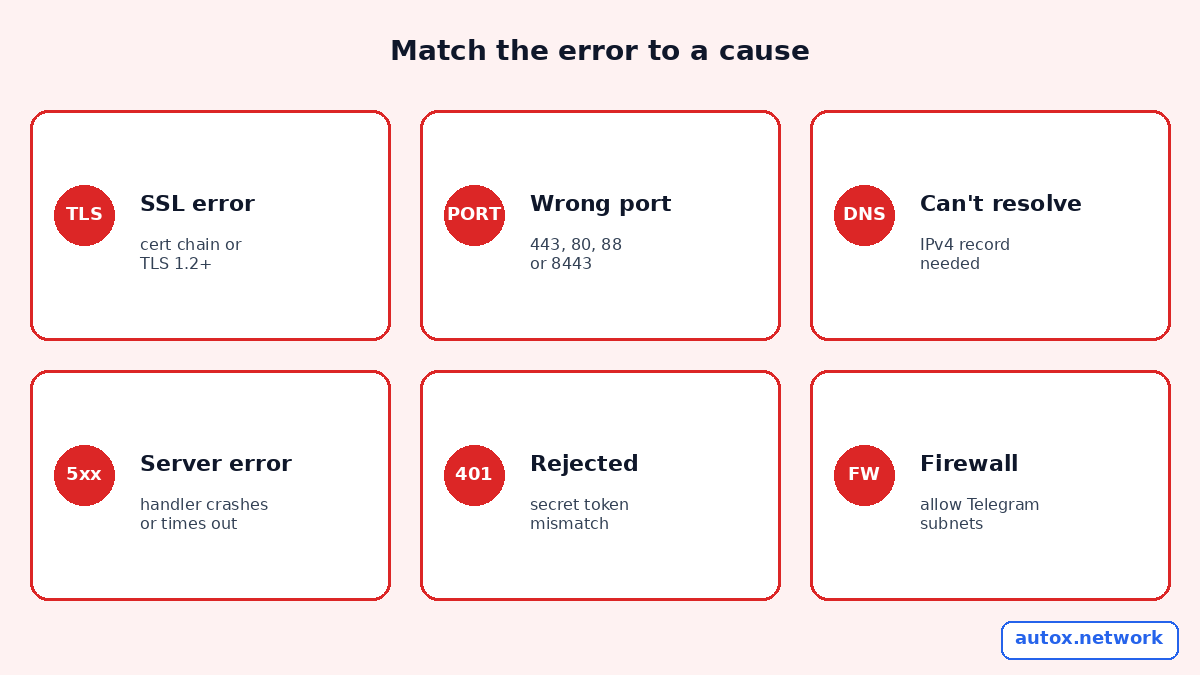
The wording of last_error_message varies, but it usually falls into one of five groups:
- Wrong response from the webhook with an HTTP status such as 404, 500 or 502. Telegram reached your server, but your route or app failed. Check that the path matches exactly, that the app is running, and what your reverse proxy returns.
- SSL or certificate errors. Telegram's webhook guide asks for TLS 1.2 or higher, a supported verified or self-signed certificate, a CN or SAN that matches the domain you set, and all intermediate certificates in the chain. A missing intermediate is the classic cause after a certificate renewal.
- Connection refused or timed out. The port is closed, a firewall blocks Telegram, or the server is down. Webhooks only work on ports 443, 80, 88 or 8443, and Telegram's guide says incoming POSTs come from the subnets 149.154.160.0/20 and 91.108.4.0/22 over IPv4; IPv6 isn't supported for webhooks.
- Read timeout. Your handler took too long to answer. Return a 200 quickly and do slow work, such as calling the X API, in a background job.
- Unauthorized-looking responses from your own app. If you set a
secret_token, Telegram sends it in theX-Telegram-Bot-Api-Secret-Tokenheader. A handler that compares it against the wrong value rejects every real update.
Step 3: fix it in an order that keeps your updates
Telegram stores incoming updates until the bot receives them, but not for longer than 24 hours. That gives you a window to fix things without losing messages, as long as you don't throw the queue away by accident.
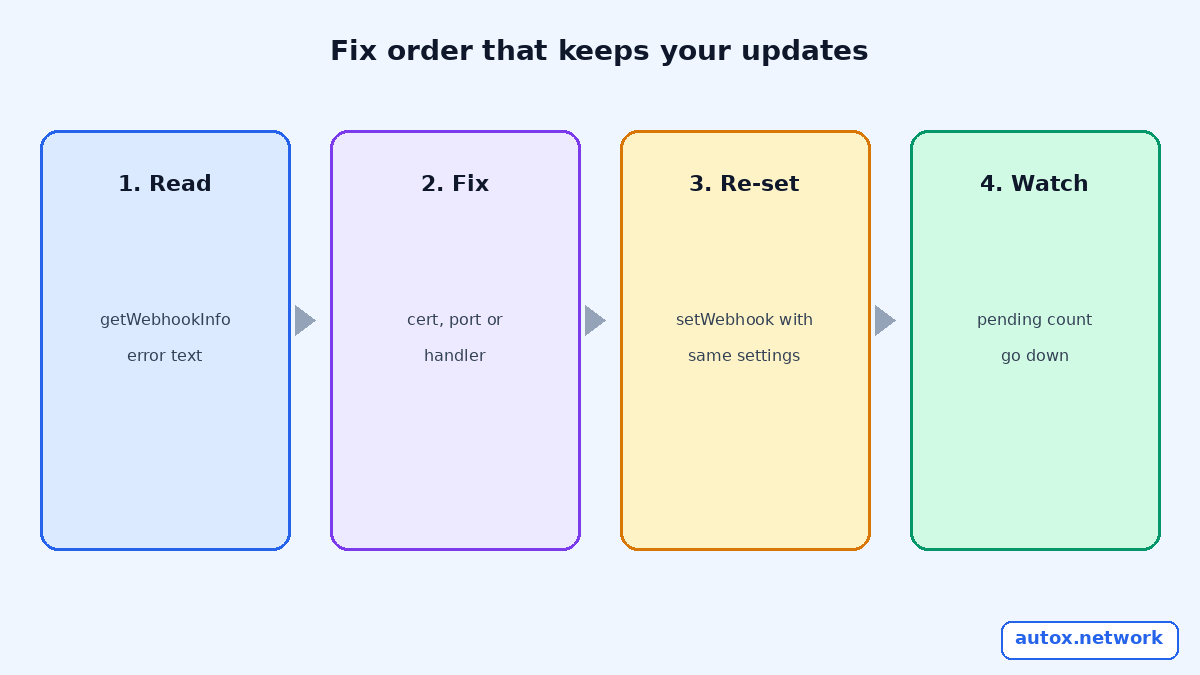
- Fix the endpoint first. Make the URL return 200 to a test POST from outside your network, with a valid certificate chain.
- Re-set the webhook if anything changed, such as the domain, path, port or secret. Call
setWebhookwith the sameallowed_updatesyou used before. - Leave
drop_pending_updatesoff unless you really want to discard the backlog. Setting it to true clears everything waiting. - Watch
pending_update_countfall on the nextgetWebhookInfocalls, and check thatlast_error_datestops moving.
When the backlog arrives, it can come in a burst. Deduplicate by update_id so a retried delivery doesn't schedule the same post twice; our guide to webhook secret tokens and update_id dedupe shows the pattern.
Why a bot answers some messages and not others
If deliveries succeed but some messages never reach your handler, the webhook is fine and the filter is the problem. allowed_updates from your last setWebhook call stays in force until you change it, so a bot that once asked only for message won't receive callback_query updates from inline buttons. In groups, privacy mode also limits which messages a bot sees. Compare the allowed_updates list in getWebhookInfo with the update types your code expects.
Monitoring so it doesn't happen silently again
A webhook can break overnight after a certificate renewal, a proxy change or a deploy that moves a route. A cheap safeguard is a scheduled job that calls getWebhookInfo every few minutes and alerts you when pending_update_count keeps rising or last_error_date is recent. Keep the alert message short: the error text, the pending count and the time. For a scheduler like Auto X, pair this with retry and dead-letter handling on the X side, so a failed publish is visible instead of lost; see retries and dead-letter queues for Telegram-to-X publishing.
If your scheduled X posts didn't go out and the webhook looks healthy, the cause is probably further down the chain. Our checklist of why a scheduled post didn't post on X covers the other common causes.
After the fix: webhook or getUpdates?
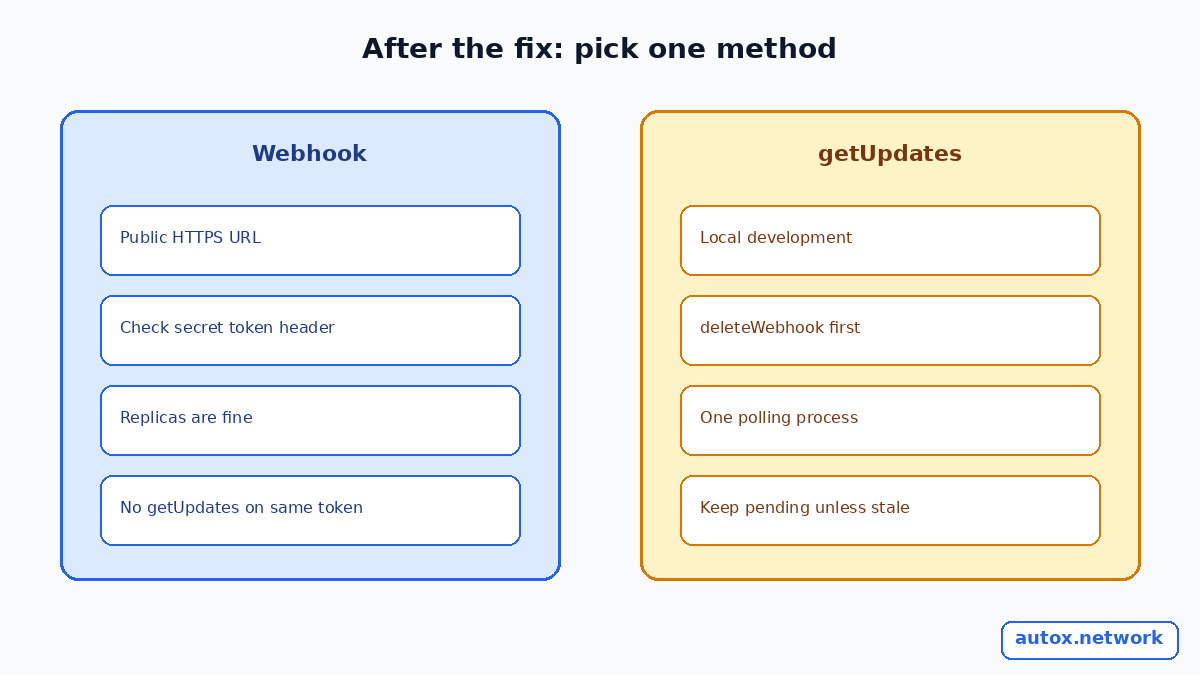
Telegram gives a bot two ways to receive updates, and you can only use one at a time. The Bot API states that getUpdates won't work while an outgoing webhook is set, so a bot that switches between them during debugging often ends up in a confusing half-state. Decide on one and make the deploy enforce it.
- Stay on the webhook if your bot runs on a server or serverless function with a public HTTPS URL. Set a
secret_tokeninsetWebhookand check theX-Telegram-Bot-Api-Secret-Tokenheader on every request, so only Telegram can call your endpoint. - Switch to getUpdates for local development, or when you can't expose a valid HTTPS endpoint. Call
deleteWebhookfirst, and run exactly one polling process per token. - Moving between them:
deleteWebhookacceptsdrop_pending_updates. Leave it false if you want the waiting updates; set it true only when a backlog of stale messages would do more harm than good.
Whichever you pick, write the choice into your deploy notes, along with the webhook URL, the allowed update types and who owns the token. The next person debugging the bot, often future you, will save an hour.
FAQ
How do I check whether my Telegram bot has a webhook set?
Call getWebhookInfo. If the url field is empty, no webhook is set and the bot must use getUpdates. If it has a URL, Telegram posts updates there.
How long does Telegram keep updates if my webhook is down?
The Bot API documentation says incoming updates are stored until the bot receives them, but not for longer than 24 hours.
Which ports can a Telegram webhook use?
Ports 443, 80, 88 and 8443. Other ports aren't supported, so a reverse proxy usually forwards one of them to your app.
Will deleting the webhook lose my pending updates?
Not by default. deleteWebhook and setWebhook only drop the backlog when you pass drop_pending_updates set to true.
Why does pending_update_count keep growing?
Telegram is trying to deliver and failing, or your handler doesn't answer with a success status. Read last_error_message for the reason and fix the endpoint first.
Sources
- Telegram Bot API: getWebhookInfo and WebhookInfo (checked 2026-10-31)
- Telegram Bot API: setWebhook, secret_token, drop_pending_updates (checked 2026-10-31)
- Telegram: Marvin's Marvellous Guide to All Things Webhook (checked 2026-10-31)